- Apple
-
* [Store](https://www.apple.com/us/shop/goto/store)
-
Open Menu Close Menu
[ macOS Sequoia 15 ](https://support.apple.com/guide/mac- help/welcome/15.0/mac/15.0)
[ macOS Sonoma 14 ](https://support.apple.com/guide/mac- help/welcome/14.0/mac/14.0)
[ macOS Ventura 13 ](https://support.apple.com/guide/mac- help/welcome/13.0/mac/13.0)
[ macOS Monterey 12 ](https://support.apple.com/guide/mac- help/welcome/12.0/mac/12.0)
[ macOS Big Sur 11.0 ](https://support.apple.com/guide/mac- help/welcome/11.0/mac/11.0)
[ macOS Catalina 10.15 ](https://support.apple.com/guide/mac- help/welcome/10.15/mac/10.15)
[ macOS Mojave 10.14 ](https://support.apple.com/guide/mac- help/welcome/10.14/mac/10.14)
[ macOS High Sierra ](https://support.apple.com/guide/mac- help/welcome/10.13/mac/10.13)
Select version:
macOS Tahoe 26 macOS Sequoia 15 macOS Sonoma 14 macOS Ventura 13 macOS Monterey 12 macOS Big Sur 11.0 macOS Catalina 10.15 macOS Mojave 10.14 macOS High Sierra
Modifying this control will update this page automatically
Search this guide Clear Search

Mac User Guide
for macOS Tahoe

Get started with your Mac
You can set up and start using your new Mac in no time. Choose a wallpaper for your desktop, change common settings, start using apps, and more.
[Learn how to make the most of your new Mac](https://support.apple.com/guide/mac-help/get-started-with-your-mac- mchl3a2c2cb0/26/mac/26)
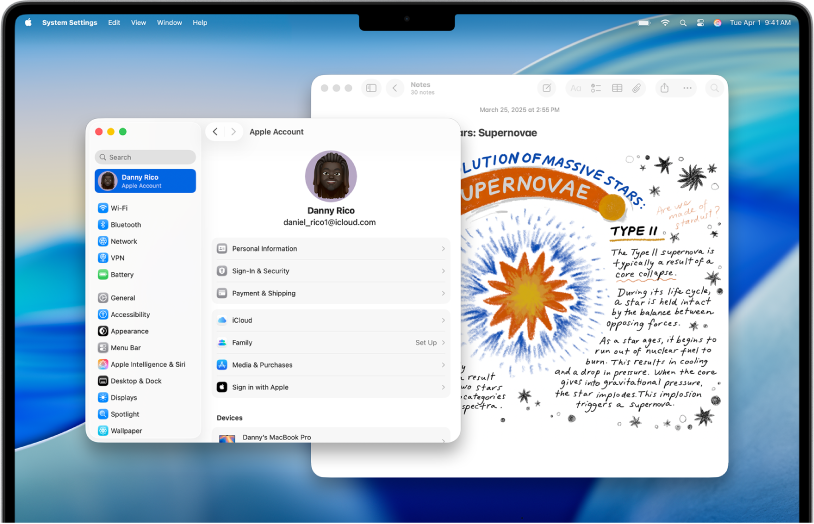
Switched from Windows to Mac?
If you’re switching to Mac, start here to make it a smooth transition. Learn how to find your way around the Mac, how to transfer your files from your PC, and more.
[Learn how to transition to your new Mac](https://support.apple.com/guide/mac- help/switched-from-windows-to-mac-mchlbc684e49/26/mac/26)
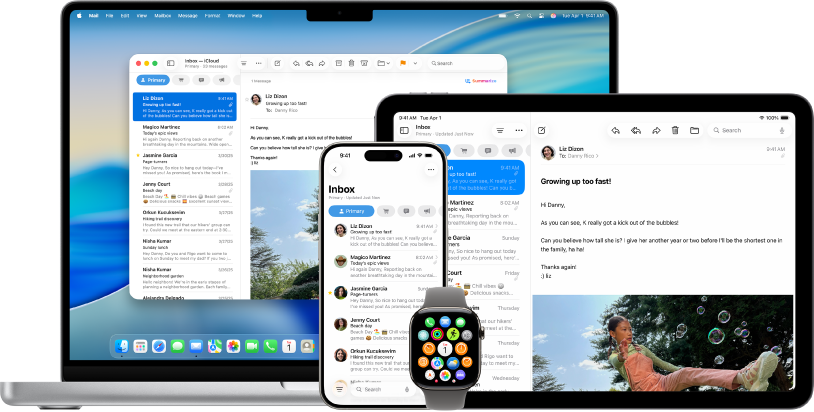
Use your Mac with other Apple devices
Your Mac works seamlessly with all your other Apple devices. View and control your iPhone right from your Mac desktop, copy and paste between devices, and more.
[Learn how your Mac works with other devices](https://support.apple.com/guide/mac-help/intro-to-continuity- mchl1d734309/26/mac/26)
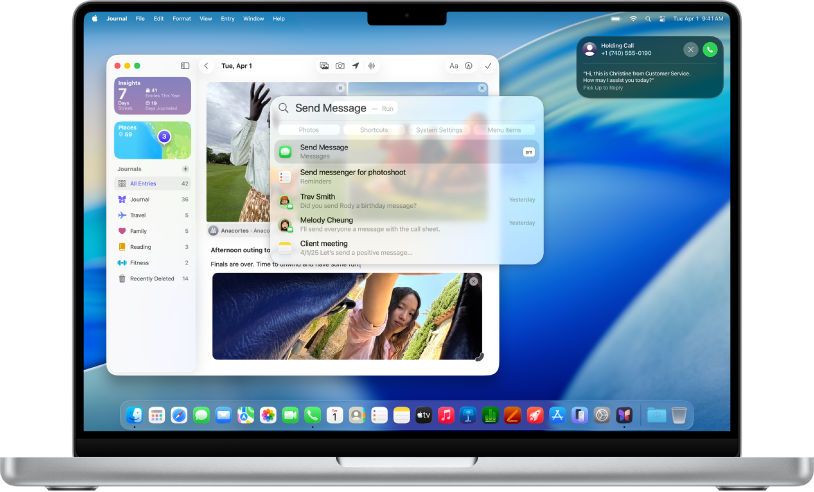
What’s new in macOS Tahoe
macOS Tahoe has a fresh new design, and helps you work and communicate more seamlessly. Make phone calls from your Mac, use Spotlight to search and take action without opening apps, get automatic translations in calls and messages, and more.
[Learn about new features in macOS Tahoe](https://support.apple.com/guide/mac- help/whats-new-in-macos-tahoe-apd07d671600/26/mac/26)
Control your privacy and security
Your privacy and security come first. Your Mac includes built-in tools to protect your important information—from password management to private browsing and beyond.
[Learn how to keep your Mac private and secure](https://support.apple.com/guide/mac-help/keep-your-work-private-and- secure-mchl0b8771e8/26/mac/26)

Deleted a password?
Learn how to recover a deleted password or passkey.
Recover a recently deleted password

Get to know your Mac
Got a new Mac? Learn the essentials for your model.
[Find the Getting Started guide for your Mac](https://support.apple.com/guide/mac-help/about-your-mac-model- mchl30bc42cb/26/mac/26)

Apple Intelligence
Personal, private—and integrated into macOS.
[Learn more about Apple Intelligence](https://support.apple.com/guide/mac- help/intro-to-apple-intelligence-mchl46361784/26/mac/26)
To explore the Mac User Guide, click Table of Contents at the top of the page, or enter a word or phrase in the search field.
If you need more help, visit the [macOS Support website](https://support.apple.com/macos?cid=ot-nav-mac-psp- helpviewer-09182020).
Not all features and content are available in all countries or regions. Apple Intelligence is available in beta with support for the following languages: English, Danish, Dutch, French, German, Italian, Norwegian, Portuguese, Spanish, Swedish, Turkish, Chinese (Simplified), Chinese (Traditional), Japanese, Korean, and Vietnamese. Some features may not be available in all languages or regions. For more information on language and feature availability and system requirements, see the Apple Support article How to get Apple Intelligence.
Mac User Guide
- Welcome
- About your Mac model
- What’s new in macOS Tahoe
- Get to know the desktop
- Mac basics
- Apps
- Files and folders
- Personalize your Mac
- Get to know Siri
- Apple Intelligence
- Intro to Apple Intelligence
- Translate messages and calls
- Create original images with Image Playground
- Create your own emoji with Genmoji
- Use Apple Intelligence with Siri
- Find the right words with Writing Tools
- Summarize notifications and reduce interruptions
- Use Apple Intelligence with apps
- Use ChatGPT with Apple Intelligence
- Apple Intelligence and privacy
- Block access to Apple Intelligence features
- Beyond Mac basics
- Use Apple devices together
- Intro to Continuity
- Use AirDrop to send items to nearby devices
- Hand off tasks between devices
- Control your iPhone from your Mac
- Copy and paste between devices
- Stream video and audio with AirPlay
- Make and receive calls and text messages on your Mac
- Use your iPhone internet connection with your Mac
- Share your Wi-Fi password with another device
- Use iPhone as a webcam
- Insert sketches, photos, and scans from iPhone or iPad
- Unlock your Mac with Apple Watch
- Use your iPad as a second display
- Use one keyboard and mouse to control Mac and iPad
- Sync music, books, and more between devices
- Apple Account and iCloud
- Screen Time
- Family Sharing
- Watch, play, and learn
- Use accessories and hardware
- Accessibility
- Get started
- General
- Vision
- Accessibility features for vision
- Get started with VoiceOver
- Zoom in on what’s around you
- Zoom in on your Mac screen
- Increase font size and icons
- Adjust the display colors
- Hover to zoom in on text and colors
- Listen to or change how text appears in apps
- Customize onscreen motion
- Increase the size of what’s on your screen
- Make the pointer easier to see
- Have your Mac speak text that’s on the screen
- Hearing
- Mobility
- Speech
- Privacy and security
- Restart, update, reset, and restore
- Resources for your Mac
- Resources for your Apple devices
- Copyright and trademarks
Helpful?
Yes No
Character limit: 250
Please don’t include any personal information in your comment.
Maximum character limit is 250.
Submit
Thanks for your feedback.
Apple Footer
- Support
- Mac User Guide
[United States](https://support.apple.com/guide/mac- help/welcome/mac/localeselector “Choose your country or region”)
Copyright © 2026 Apple Inc. All rights reserved.